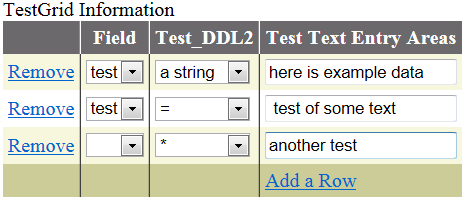
GridView controls are versatile multi-purpose ASP.NET widgets. I like the default functionality when hooked up to a data source, but depending on a project’s requirements I also like the ability to tweak the default functionality to make the GridView behave in different ways.
For example, in past projects users have asked me to create a more Excel-like interface for viewing and managing their data. This is certainly possible with a GridView control. To take things one step further, in some cases the GridView can even be used as a UI-specific widget that runs disassociated from a DataSource.
Basically the GridView control can be adjusted to act like a tabular widget on a Web page which allows the user to add/remove/edit multiple rows of information at once. I have not been able to find a front-end only widget of the same calibre that has similar behavior, and coding it completely from scratch using JavaScript and HTML tables seems like overkill.
So How Does One Set Up an Excel-Like GridView Separated from a DataSource?
- The first step of the process is to drag a GridView control onto your ASP.NET WebForm in Visual Studio.
- A good idea then is to enable theming and then to select a visually appealing theme for your new GridView control using the Auto Format option in the Visual Studio Properties window. In the case of the screen-shot attached to this article I selected the style Mocha.
Now Make your GridView Look Like an Editable SpreadSheet
- Once done, it’s time to start editing your default template. To make your GridView look more like an editable spreadsheet you can manually add editable controls to your ASP:TemplateField ItemTemplate columns. The Gridview by default shows ItemTemplate columns so rather than showing read-only labels, we can add editable fields.
- Remember also to turn off automatic column generation (AutoGenerateColumns=False) as well as automatic button generation for add/edit/delete buttons (ie: AutoGenerateDeleteButton=False, AutoGenerateEditButton=False, AutoGenerateSelectButton=False). We want to control all of this behavior manually.
Give Users the Ability to Add New Rows to Your GridView
- Now add an Add button to one of the table columns of your FooterTemplate. You will want to point this to a custom ASP.NET method where you will back-up your existing GridView structure and then add a new blank row.
- Note that to back up your existing GridView structure, you will need to manually handle this due to the Web’s stateless nature. In the code sample below the method called CopyTestGridInfoTable() handles backing up the existing grid into a DataTable by iterating through the Rows of the existing Grid.
- As soon as the existing GridView has been backed up into a DataTable, the AddBlankRow() method is called, which simply inserts a blank row of data into the DataTable along with a unique identifier for the new row.
- As you can see from the code, the simplest way to get a unique identifier for each row is by using the following: Guid.NewGuid().ToString().GetHashCode().ToString(“x”) . This syntax is used whenever a new or existing row is added to the GridView and is saved to a hidden field within the GridView itself.
- Once the new row has been added, the GridView is bound to the updated DataTable and re-rendered on the UI to display to the user.
Give Users the Ability to Remove Rows From Your GridView
- Finally, we must also give our users a way to remove any row of the GridView they do not wish to see. This is done by adding a special TemplateField column containing a LinkButton control.
- To associate the new Removal LinkButton control with the btnDelete_click deletion method, we set the button’s onCommand option to point to the btnDelete_click deletion method. Then to make sure the correct unique row id is passed to the deletion method, we set the LinkButton’s CommandArgument to be the Uniquely generated Guid that is used when constructing and saving our table.
- Then within the btnDelete_click deletion method we call the CopyTestGridInfoTable() method to back up our existing GridView into a DataTable, and then we iterate through the DataRows in the DataTable and delete the row selected by the user using the the Guid unique row identifier.
- Finally, we re-bind the GridView to the adjusted DataTable to make sure that the user’s changes show on the UI.
Putting it All Together – The Full Example
Below is a full example page of a multi-line editable GridView control that runs disassociated from a datasource, and that provides the user with the ability to add new rows and delete specific existing rows:
<%@ Page Language="VB" %>
<%@ Import Namespace="System.IO" %>
<%@ Import Namespace="System.Data" %>
<%@ Import Namespace="System.Data.SqlClient" %>
<!DOCTYPE html PUBLIC "-//W3C//DTD XHTML 1.0 Transitional//EN" "http://www.w3.org/TR/xhtml1/DTD/xhtml1-transitional.dtd">
<html xmlns="http://www.w3.org/1999/xhtml">
<head runat="server">
 <title></title>
<script runat="server">
 Protected Sub Page_Load(sender As Object, e As System.EventArgs)
 If Not Page.IsPostBack Then
 SetupTestGridInputFilters()
 End If
 End Sub
 Private Sub SetupTestGridInputFilters()
 Dim dtTestGridInputFilters As New DataTable()
 Dim colOne As New DataColumn("Field", System.Type.GetType("System.String"))
 dtTestGridInputFilters.Columns.Add(colOne)
 Dim colTwo As New DataColumn("Op", System.Type.GetType("System.String"))
 dtTestGridInputFilters.Columns.Add(colTwo)
 Dim colThree As New DataColumn("Val", System.Type.GetType("System.String"))
 dtTestGridInputFilters.Columns.Add(colThree)
 Dim colFour As New DataColumn("RowCount", System.Type.GetType("System.String"))
 colFour.DefaultValue = Guid.NewGuid().ToString().GetHashCode().ToString("x")
 dtTestGridInputFilters.Columns.Add(colFour)
 Session("dtTestGridInputFilters") = dtTestGridInputFilters
 AddBlankRow()
 End Sub
 Protected Sub lbAdd_Click(sender As Object, e As System.EventArgs)
 Session("dtTestGridInputFilters") = CopyTestGridInfoTable()
 AddBlankRow()
 End Sub
 Private Sub AddBlankRow()
 Dim dtTestGridInputFilters As DataTable
 dtTestGridInputFilters = Session("dtTestGridInputFilters")
 Dim blankRow As DataRow = dtTestGridInputFilters.NewRow()
 blankRow("Field") = ""
 blankRow("Op") = ""
 blankRow("Val") = ""
 blankRow("RowCount") = Guid.NewGuid().ToString().GetHashCode().ToString("x")
 dtTestGridInputFilters.Rows.Add(blankRow)
 GridView1.DataSource = dtTestGridInputFilters
 GridView1.DataBind()
 End Sub
 Private Function CopyTestGridInfoTable() As DataTable
 Dim returnValue As DataTable
 returnValue = getWorkingDataTable()
 For Each rowValue As GridViewRow In GridView1.Rows
 Dim drExistingRow = returnValue.NewRow()
 Dim strFieldVal As String = CType(rowValue.FindControl("ddlCustInfoField"), DropDownList).SelectedItem.Value
 Dim strOpVal As String = CType(rowValue.FindControl("ddlCustInfoOp"), DropDownList).SelectedItem.Value
 Dim strSearchVal As String = CType(rowValue.FindControl("txtCustInfoVal"), TextBox).Text
 Dim strRowCntVal As String = CType(rowValue.FindControl("tbRowNum"), TextBox).Text
 drExistingRow.Item("Field") = strFieldVal
 drExistingRow.Item("Op") = strOpVal
 drExistingRow.Item("Val") = strSearchVal
 drExistingRow.Item("RowCount") = strRowCntVal
 returnValue.Rows.Add(drExistingRow)
 Next
 Return returnValue
 End Function
 Private Function getWorkingDataTable() As DataTable
 Dim returnValue As New DataTable()
 Dim dt = TryCast(Session("dtTestGridInputFilters"), DataTable)
 If Not dt Is Nothing Then
 returnValue = dt.Clone()
 End If
 Return returnValue
 End Function
 Protected Sub btnDelete_Click(ByVal sender As Object, ByVal e As CommandEventArgs)
 Session("dtTestGridInputFilters") = CopyTestGridInfoTable()
 Dim strRemoveLoc As String = e.CommandArgument
 Dim returnValue As DataTable
 returnValue = Session("dtTestGridInputFilters")
 Dim intRowCnt As Int32 = returnValue.Rows.Count
 If intRowCnt > 1 Then
 For Each checkRow As DataRow In returnValue.Rows
 If (strRemoveLoc).Equals(checkRow("RowCount").ToString) Then
 checkRow.Delete()
 Exit For
 End If
 Next
 Else
 For Each checkRow As DataRow In returnValue.Rows
 checkRow("Field") = ""
 checkRow("Op") = ""
 checkRow("Val") = ""
 Next
 End If
 GridView1.DataSource = returnValue
 GridView1.DataBind()
 End Sub
</script>
</head>
<body>
 <form id="form1" runat="server">
 <div>

 <Table ID="Table1" Width="1303px">
 <tr><td colspan="2">
 <!-- PLACE HEADER HERE -->
 </td></tr>
 <tr><td>
 <!-- BODY LAYOUT ROW 1 Column 1-->
 <asp:Label ID="Label1" runat="server" Text="TestGrid Information"></asp:Label><br />
 <asp:GridView ID="GridView1" runat="server" AutoGenerateColumns="False"
 BackColor="White" BorderColor="#DEDFDE"
 BorderStyle="None" BorderWidth="1px" CellPadding="4" ForeColor="Black"
 GridLines="Vertical" ShowFooter="True" >
 <AlternatingRowStyle BackColor="White" />
 <Columns>
 <asp:TemplateField>
 <ItemTemplate>
 <asp:LinkButton ID="lbDelete" runat="server" OnCommand="btnDelete_Click" CommandName="Delete" CommandArgument='<%#Eval("RowCount") %>'>Remove</asp:LinkButton>
 <asp:TextBox ID="tbRowNum" runat="server" style="display:none;" text='<%#Bind("RowCount") %>'></asp:TextBox>
 </ItemTemplate>
 <FooterTemplate>
 </FooterTemplate>
 </asp:TemplateField>
 <asp:TemplateField HeaderText="Field">
 <ItemTemplate>
 <asp:DropDownList id="ddlCustInfoField" runat="server" SelectedValue='<%#Bind("Field") %>'>
 <asp:ListItem Value=""></asp:ListItem>
 <asp:ListItem Value="test">test</asp:ListItem>
 </asp:DropDownList>
 </ItemTemplate>
 <FooterTemplate>
 </FooterTemplate>
 </asp:TemplateField>
 <asp:TemplateField HeaderText="Op">
 <ItemTemplate>
 <asp:DropDownList id="ddlCustInfoOp" runat="server" SelectedValue='<%#Bind("Op") %>'>
 <asp:ListItem Value=""></asp:ListItem>
 <asp:ListItem Value="=">=</asp:ListItem>
 <asp:ListItem Value="*">*</asp:ListItem>
 <asp:ListItem Value="a string">a string</asp:ListItem>
 <asp:ListItem Value="test data">test data</asp:ListItem>
 </asp:DropDownList>
 </ItemTemplate>
 <FooterTemplate></FooterTemplate>
 </asp:TemplateField>
 <asp:TemplateField HeaderText="Value">
 <ItemTemplate>
 <asp:TextBox id="txtCustInfoVal" runat="server" Text='<%# Bind("Val") %>'>
 </asp:TextBox>
 </ItemTemplate>
 <FooterTemplate>
 <asp:LinkButton ID="lbAdd" runat="server" OnClick="lbAdd_Click">Add a Row</asp:LinkButton></FooterTemplate>
 </asp:TemplateField>
 </Columns>
 <EmptyDataTemplate>
 No results
 </EmptyDataTemplate>
 <FooterStyle BackColor="#CCCC99" />
 <HeaderStyle BackColor="#6B696B" Font-Bold="True" ForeColor="White" />
 <PagerStyle BackColor="#F7F7DE" ForeColor="Black" HorizontalAlign="Right" />
 <RowStyle BackColor="#F7F7DE" />
 <SelectedRowStyle BackColor="#CE5D5A" Font-Bold="True" ForeColor="White" />
 <SortedAscendingCellStyle BackColor="#FBFBF2" />
 <SortedAscendingHeaderStyle BackColor="#848384" />
 <SortedDescendingCellStyle BackColor="#EAEAD3" />
 <SortedDescendingHeaderStyle BackColor="#575357" />
 </asp:GridView>
 </td><td>
 </td></tr>
 </Table></div>
 </form>
</body>
</html>


 Justin Cooney
Leave a comment